Gerben Put Nederlands

← Back to the overview

Tooldesk

Widgets for an overview, a dedicated page for each tool.

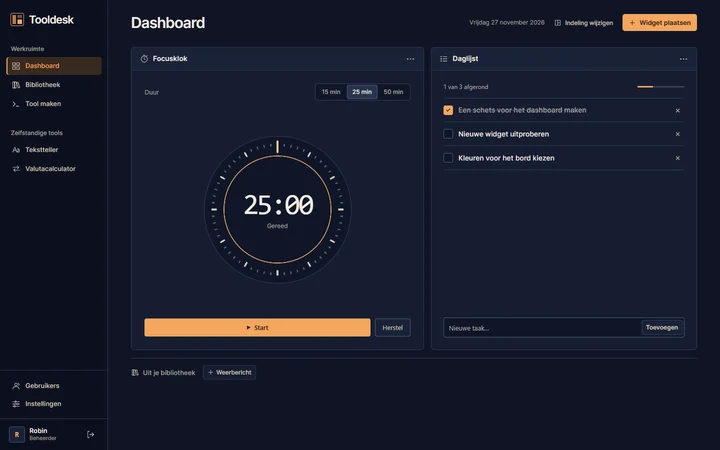
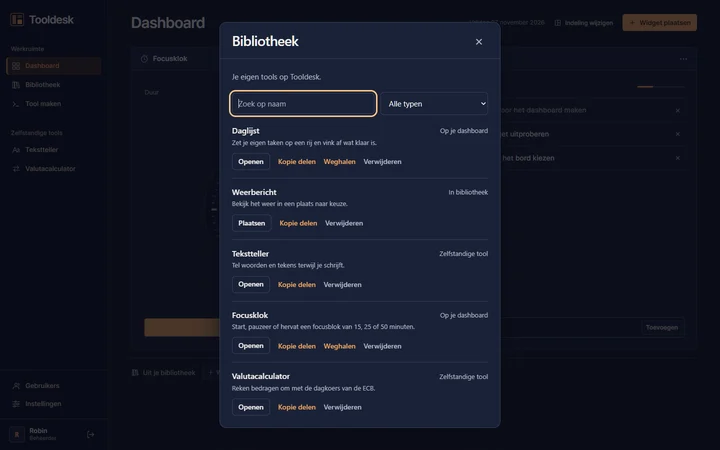
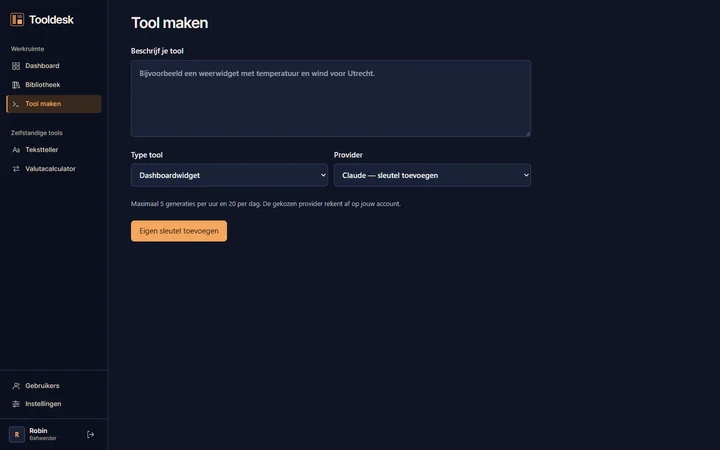
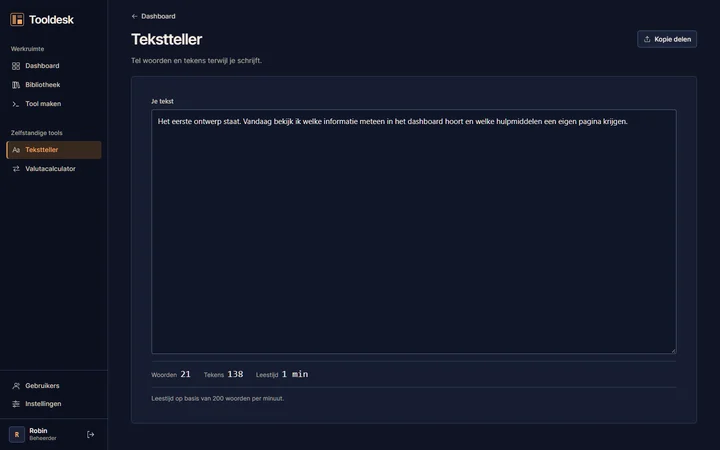
My dashboard holds my daily list and focus timer. When I need to convert a currency, I open the calculator from the sidebar. ‘Tool maken’ takes me to a separate page for my prompt, where I choose between a widget and a standalone tool. The screenshots show sample data.

  • JavaScript
  • Node.js
  • PostgreSQL
  • Web Workers
Tooldesk: Screenshot of the site with sample content
Scroll: the real site, with sample content

The story

  1. 01

    What belongs in the overview?

    A day list and a clock can stay in view throughout the day. I place them on my dashboard and can rearrange them later. I can also add a weather widget from my library.

  2. 02

    Room to work

    The currency converter has a page of its own. I open it from the sidebar, pick a currency and enter an amount. The calculation uses dated reference rates from the European Central Bank.

  3. 03

    Passing a tool on

    When a colleague wants to use the same tool, I share a copy from my library. They choose where their copy belongs and enter their own data.

In detail

Place widgets
Choose which library widgets belong on the dashboard. Tooldesk saves the layout for your next visit.
Open pages
The text counter and currency converter open from the left navigation. New standalone tools appear there too.
Build with AI
Describe what the tool should do and choose a provider. Claude, OpenAI, DeepSeek and GLM each use the key you configured.
Weather and exchange rates
A tool can look up current conditions for a city or convert amounts using the latest ECB daily rates.
Follow a generation
The generation status stays visible. If your provider rejects a key or reaches a limit, a message tells you what to check.
Access by account
The administrator grants access. Each account has its own tool data, library and limit on AI requests.
Next project DroneAI A pre-flight briefing for your drone